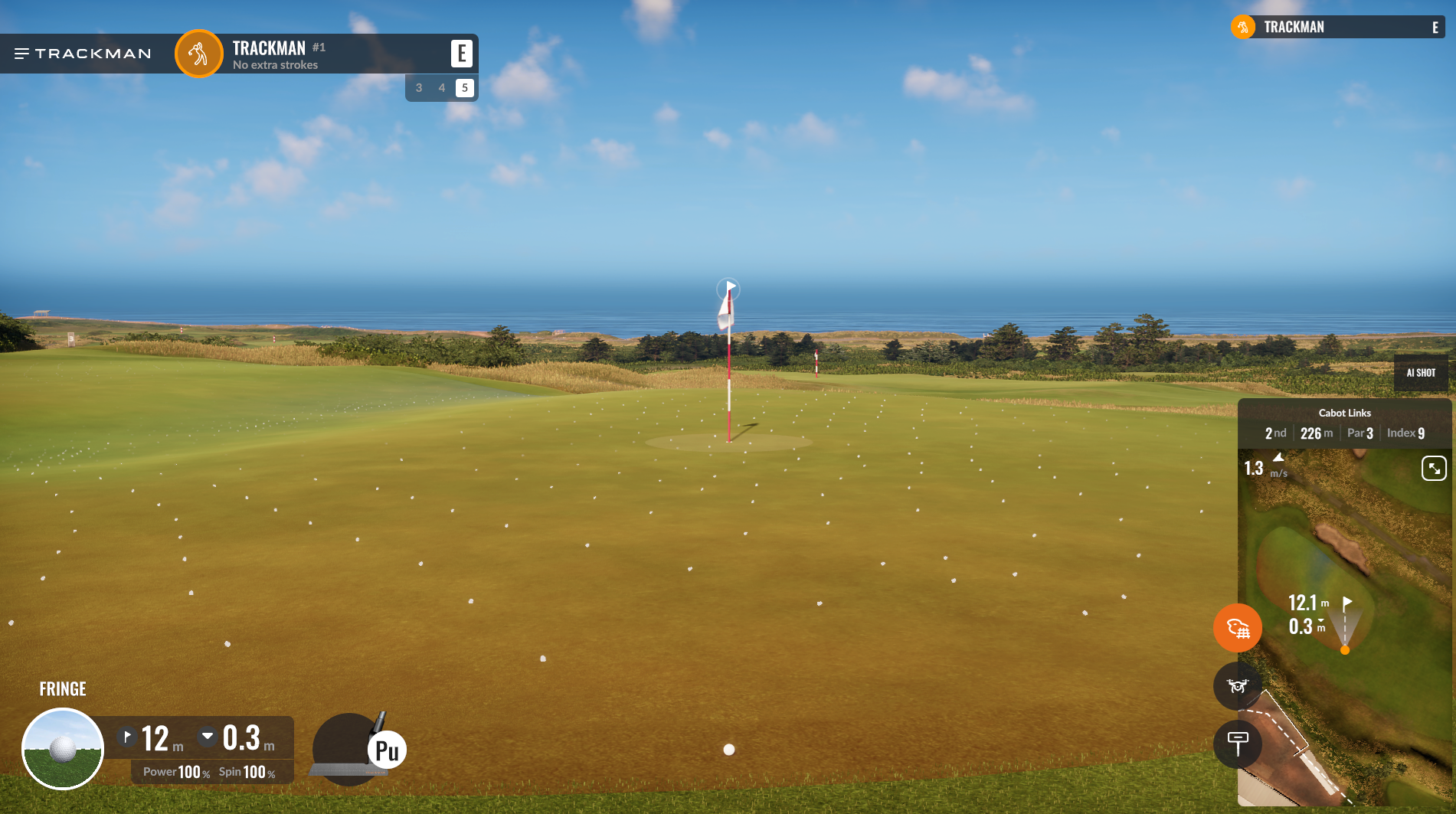
Indoor Golf Explained · Lead image shows a Virtual Golf green. Screenshot courtesy of Trackman.
You’ve hit the green. Now you’re staring at a 12-footer and a screen full of moving dots. Give the dots a second. They’re showing you which way the ball will want to go.
What do the moving dots on a Trackman green mean?
The dots move downhill. Faster dots mark steeper slopes. The colors show relative slope, with blue at the gentle end and red at the steep end. Read the dots between your ball and the hole because the slope can change along the putt.
Read the 12-footer in three passes
- Start at the ball. Look for the direction the dots are moving on your intended line. If they’re moving to the right, expect the slope to pull the ball right.
- Look near the cup. A putt slows down near the hole. Give the last stretch its own read, especially if the dots there are moving a different way.
- Pick a starting line and a pace. On a right-breaking putt, try a starting line left of the hole. A softer putt gives the slope more time to move the ball. Take one putt at a comfortable pace and adjust from what you see.

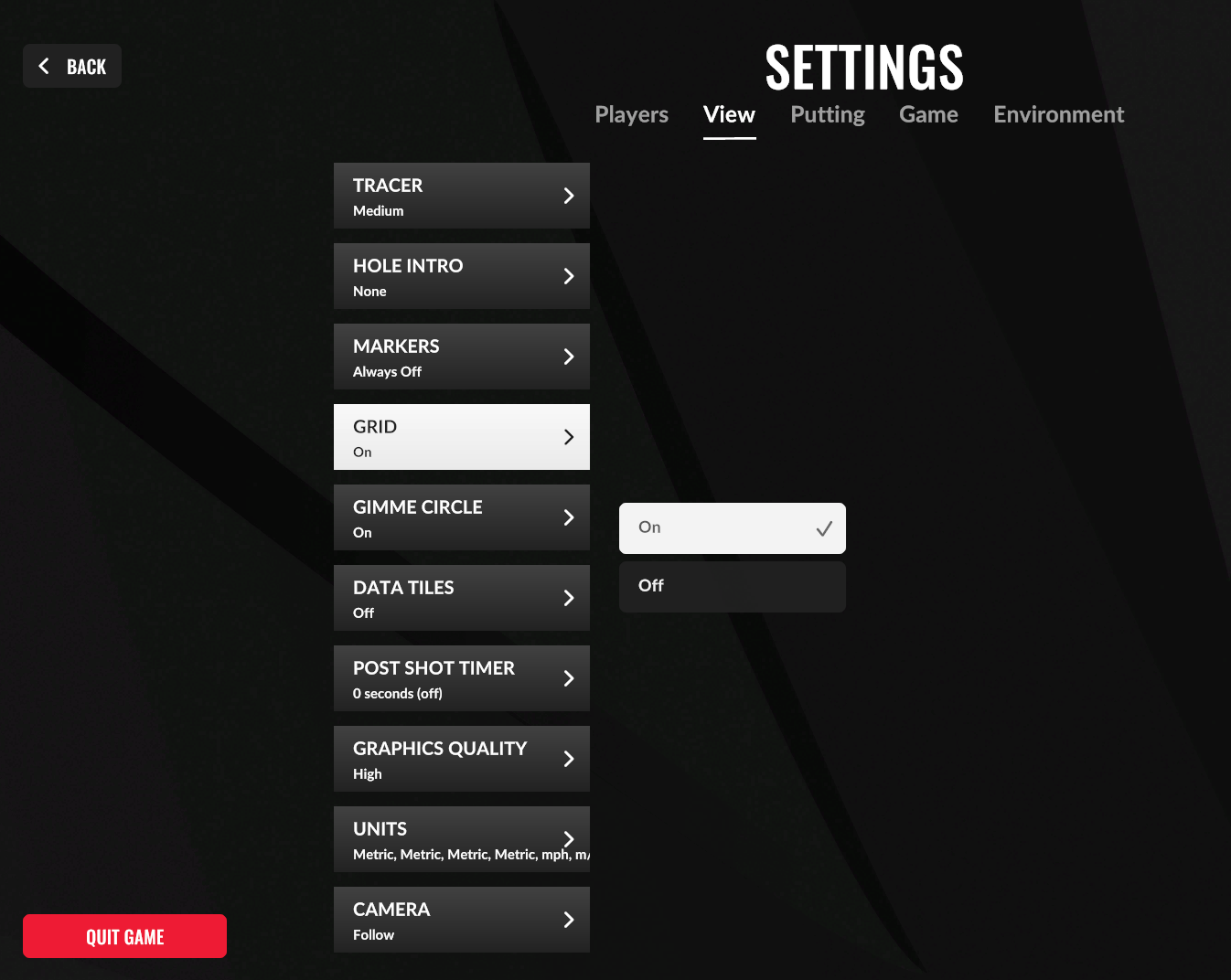
How do you turn on the green grid?
Trackman documents the control under Settings → View → Grid inside Virtual Golf. If your round is using auto-putting, check the putting format before trying to make a manual stroke.
Does a red dot mean the green is fast?
Red marks steeper slope. Green speed is a separate setting and affects how far your putt rolls for a given stroke. If you’re practicing reads, keep the speed setting the same while you compare lines.

Trackman’s green-grid documentation explains the colors and animation. Its manual putting guide explains which settings let you choose your own line.
Want to try it in West Sacramento? See indoor golf at Birdies. Ask the team about available putting settings, or set up a Planned Round before you come.
TRACKMAN® and the Tracer Logo are registered trademarks of Trackman A/S.